

Automation building 101
Budibase automations are defined workflows that can be triggered by user actions, system events, database operations, or incoming HTTP requests.
When triggered, automations can apply logic, process data, and take actions within Budibase or across integrated platforms.
Automations can be used in end-user applications or as standalone workflows for connected data.
This guide shows how to create a simple automation rule for generating and sending a weekly sales report email.
Along the way, you will learn the basics of triggers and actions, with examples of how to use data in automations. For more detail, see Introduction to Automations.
To do this, you will:
- Create a CRON trigger to run our automation rule at a specified time each week.
- Send a REST request to retrieve the sales data for the relevant time period.
- Call an LLM to extract and format our required data.
- Send the output of this to the required colleagues using an email action.
Creating a new automation rule and defining a trigger
Start in the Automations section of your Budibase Workspace. There, you are prompted to create your first automation.
Choose a name for the new rule and select a trigger. This guide uses Sales Report Generator and CRON/Schedule.
The CRON/Schedule trigger accepts a single CRON expression and also gives you the option to use a preset.
Configure the automation to run every Monday at 9 AM using 0 9 * * 1.
Populating and sending a REST request
Next, add an automation action to send a predefined REST request. In this example, it is already set up in the Data section of the Workspace.
This sends a POST request with two bindings called startDate and endDate.
Use these to dynamically add values to the request body so the correct time period is selected.
For more detail, see REST data sources.
Back in the Automation section, add an API Request action and choose the Sales Report endpoint.
In Budibase, each automation action can use data from previous steps. Use that data as bindable values with Handlebars or JavaScript expressions.
Click the lightning bolt icon to assign values to the two bindings.
For endDate, use the following JavaScript to return the current date and time.
var date = new Date()
return date
For startDate, use a similar expression that returns seven days before the current date.
var date = new Date();
date.setDate(date.getDate() - 7);
return date;
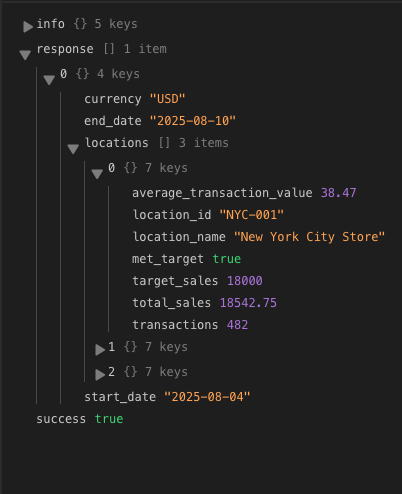
When you run a test, the API request returns an array of objects containing the sales figures for each location and its target.
Calling an LLM for data processing
Now that you have the raw data, use an LLM prompt to extract and format the key details for the email automation.
This example uses Budibase AI, but you can also connect another provider through Connections > AI models.
See Budibase AI for more detail.
Start by adding an LLM Prompt automation step.
This accepts a single argument called Prompt.
In the Bindings menu, you can see the structure of the output from the previous step.
The first part of the prompt passes the relevant data to the LLM using the following instruction.
{{ steps.API Request.response.0.locations }} is a JSON object representing our weekly sales.Then outline the information you want in the final report and how it should be formatted.
So, our final prompt will be:
{{ steps.API Request.response.0.locations }} is a JSON object representing our weekly sales.

Return a summary of this, including:
- Overall transaction volume,
- Overall transaction value,
- Overall transaction value as percentage under/over overall target,
- Total sales and percentage over/under target for each location.

Format as markdown, ready to include in an email automation in as concise a manner as possible.
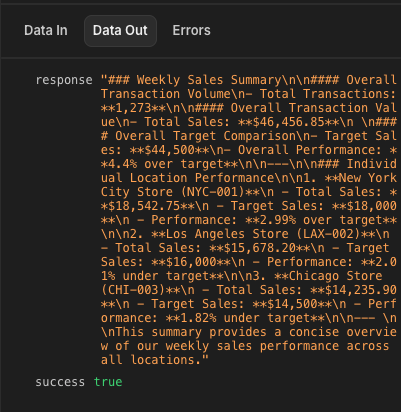
Test the automation again to verify the output from the LLM Prompt step.
Setting up our email action
Finally, use this output to populate the body of an email for your head office team.
Add a Send Email (SMTP) action. See SMTP setup for more detail.
Set the Send To and Send From addresses, the Email Subject, and the Message. Start by adding static values for Send To, Send From, and Subject.
Then bind the Message to {{ steps.LLM Prompt.response }}.
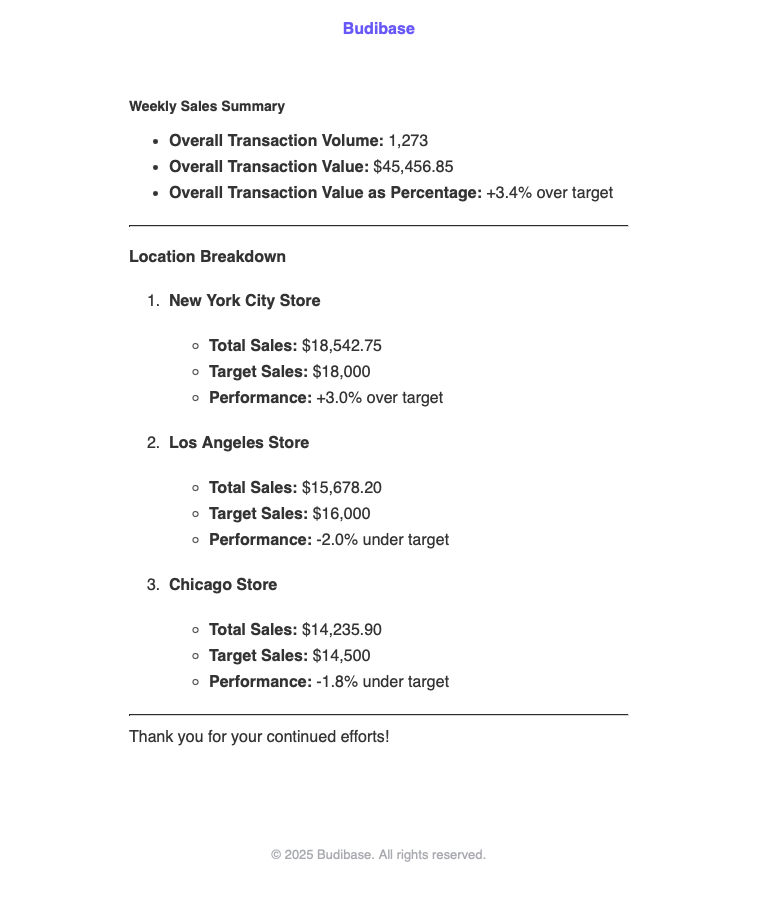
When you check your email, you should see the extracted and formatted report.
Updated 4 months ago